
ATC Status User Guide
How each part of the ATC Status app works, and the quickest way to get value from it. Pick a section below or use the bar at the top.
TBFM Ladders
The live arrival ladder: when traffic is expected at the runway, and where metering is adding delay.
TFDM Departure Ladder
The live departure ladder: where each departure is in its journey, plus demand and runway queues.
Restrictions Map
Coming soon.
Program Notifications
Set up alerts for Ground Delay Programs, Ground Stops and Airspace Flow Programs.
Before you start
- All times in the app are Zulu (UTC).
- Ladders refresh automatically every 30 seconds.
- The ⓘ icon at the top of each ladder shows feed health: green is healthy, yellow is degraded, red is stale. If it isn't green, what you see may be out of date.
- The screenshots in this guide were taken on iPad. iPhone layouts are narrower but work the same way.
TBFM Ladders
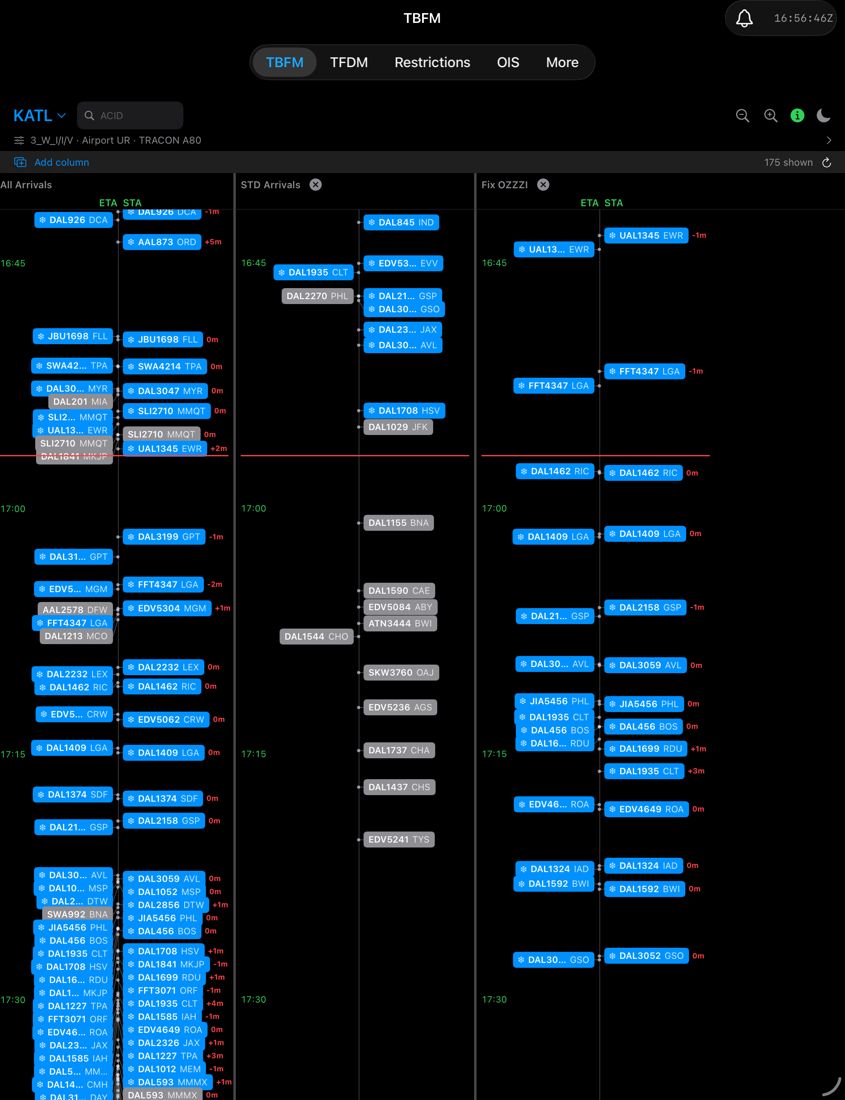
The TBFM tab shows a live arrival ladder for an airport: every inbound flight that Time-Based Flow Management is tracking, placed on a vertical time axis so you can see when traffic is expected to reach the runway and where metering is delaying it. Data refreshes automatically every 30 seconds.
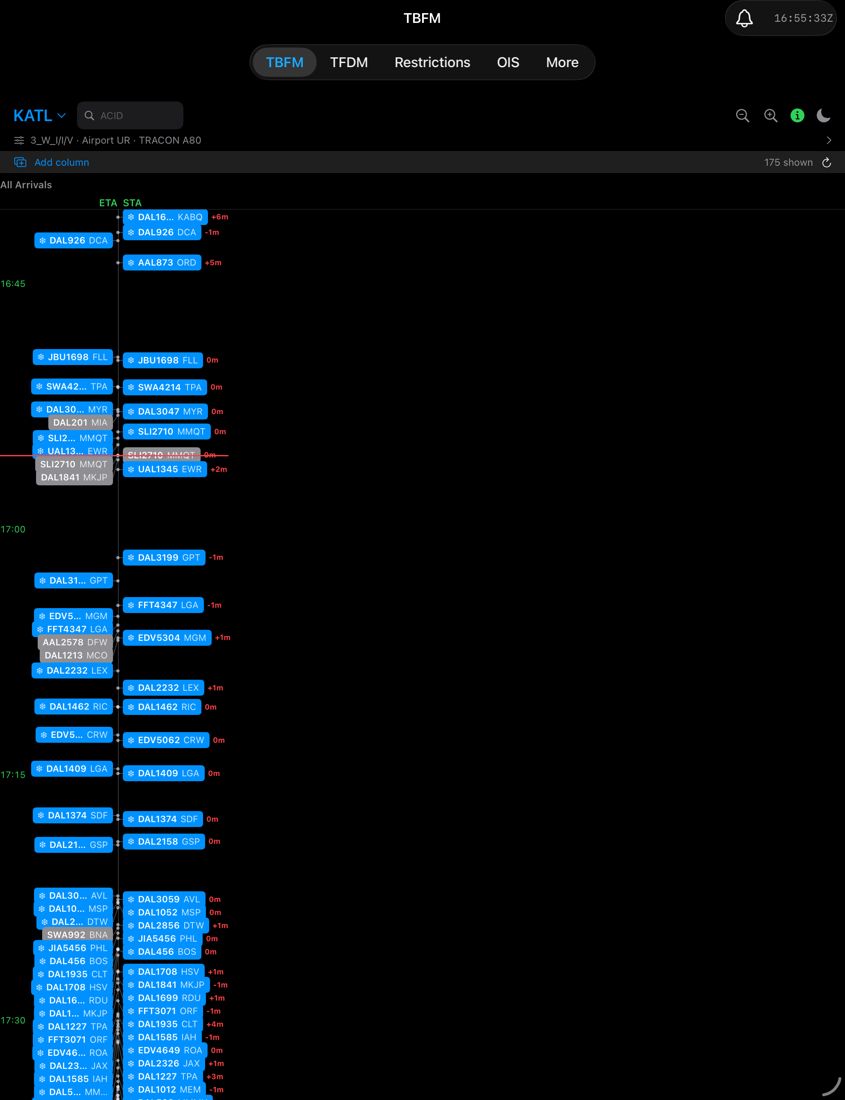
Reading the screen
| Element | Meaning |
|---|---|
| Airport selector (top left, e.g. KPHX ▾) | Switch airports. The list is whatever airports are currently available from the feed, so it can change. |
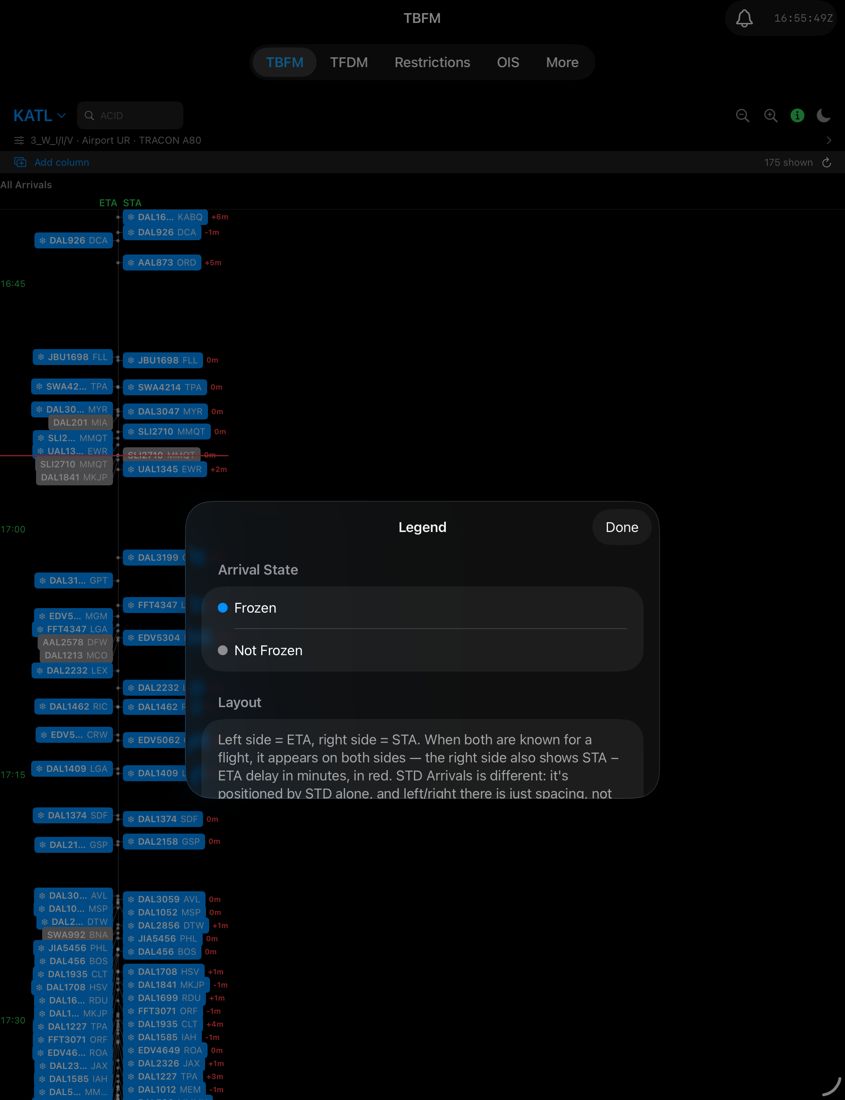
| Info icon (ⓘ) | Opens the Legend. Its colour shows feed health: green = healthy, yellow = degraded, red = stale, grey = unknown. A red or yellow icon means what you're looking at may be out of date. |
| Search field (ACID, beside the airport selector) | Find a flight by callsign (see Find a specific flight). |
| Magnifier +/− | Zoom the time axis in or out. The + button greys out at maximum zoom. |
| Moon / sun | Dark or light display. Dark is the default. |
| Clock | Current time in UTC (Zulu). All times in the app are Zulu. |
| Configuration line (e.g. EAST · Airport UR · TRACON P50) | One-line summary of the active runway configuration, airport rate and TRACON. Tap it for the full breakdown (see Configuration sheet). |
| Time axis (left, green, every 15 min) | Zulu time. The red line is "now". The ladder shows about 15 minutes of past and 3 hours ahead. |
| Flight tags | One per flight: callsign, then origin. Tap one for details. |
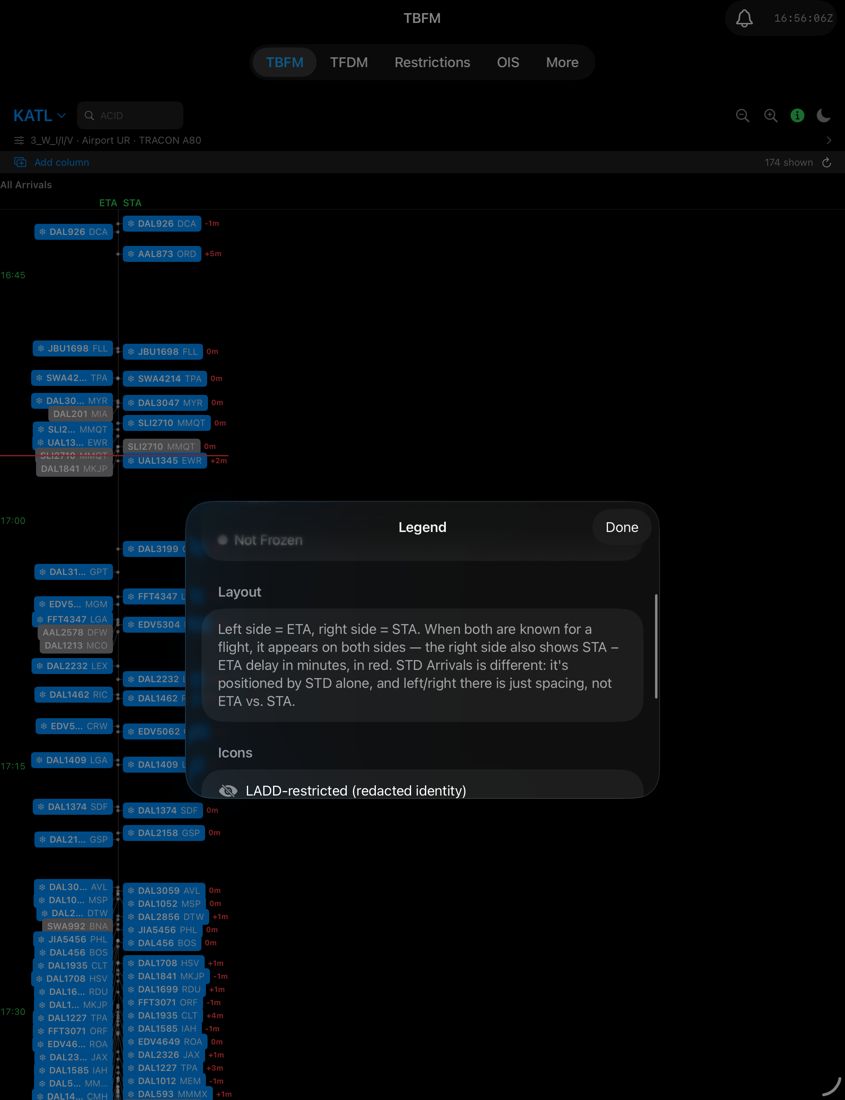
| ETA side / STA side | Left of the rail = ETA, right of the rail = STA. A flight with both appears on both sides, joined to the rail by a thin leader line. |
| Red "+Nm" next to an STA tag | Delay: STA minus ETA, in minutes. 0m means no difference; a negative value such as -2m means the STA is earlier than the ETA. |
| Blue tag with a snowflake ❄ | Frozen: the schedule has been committed. |
| Grey tag | Not frozen yet (the normal state for most arrivals). |
| Eye-slash icon | LADD-restricted flight; identity is redacted. |
| Status row (under the configuration line) | Add column on the left (see Columns). On the right, "N shown" is the number of flights currently on the ladder, and ↻ forces a refresh. Search feedback also appears here. A red warning means the last fetch failed; tap it for diagnostics. |
Columns
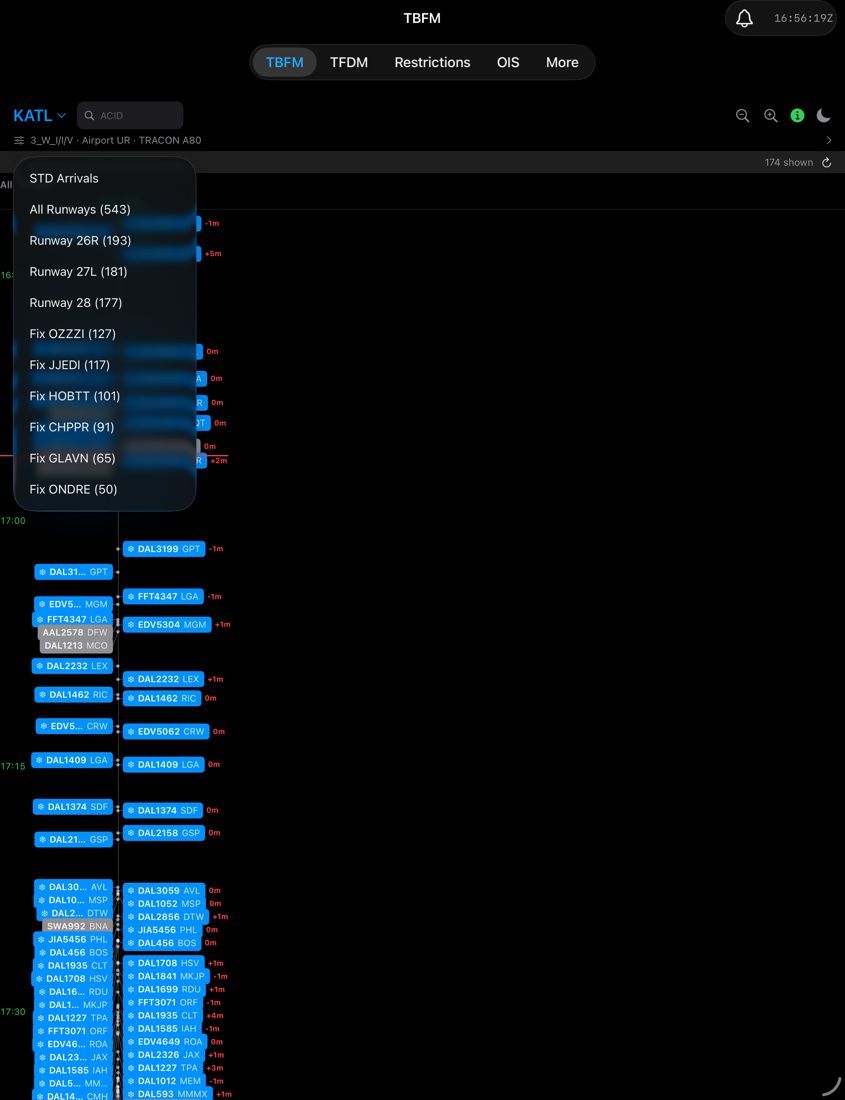
The default column is All Arrivals, positioned by runway times. Tap Add column in the status row to add more side by side:
- A meter fix or runway. Flights are positioned by when they reach that point, not the runway. Each entry shows its current flight count, busiest first. Remove a column with its ✕.
- STD Arrivals. Arrivals that carry a scheduled departure time (STD), positioned by STD alone. Left and right here is just spacing, not ETA versus STA.
Column headers stay pinned while you scroll; swipe sideways to move between columns.
Flight details
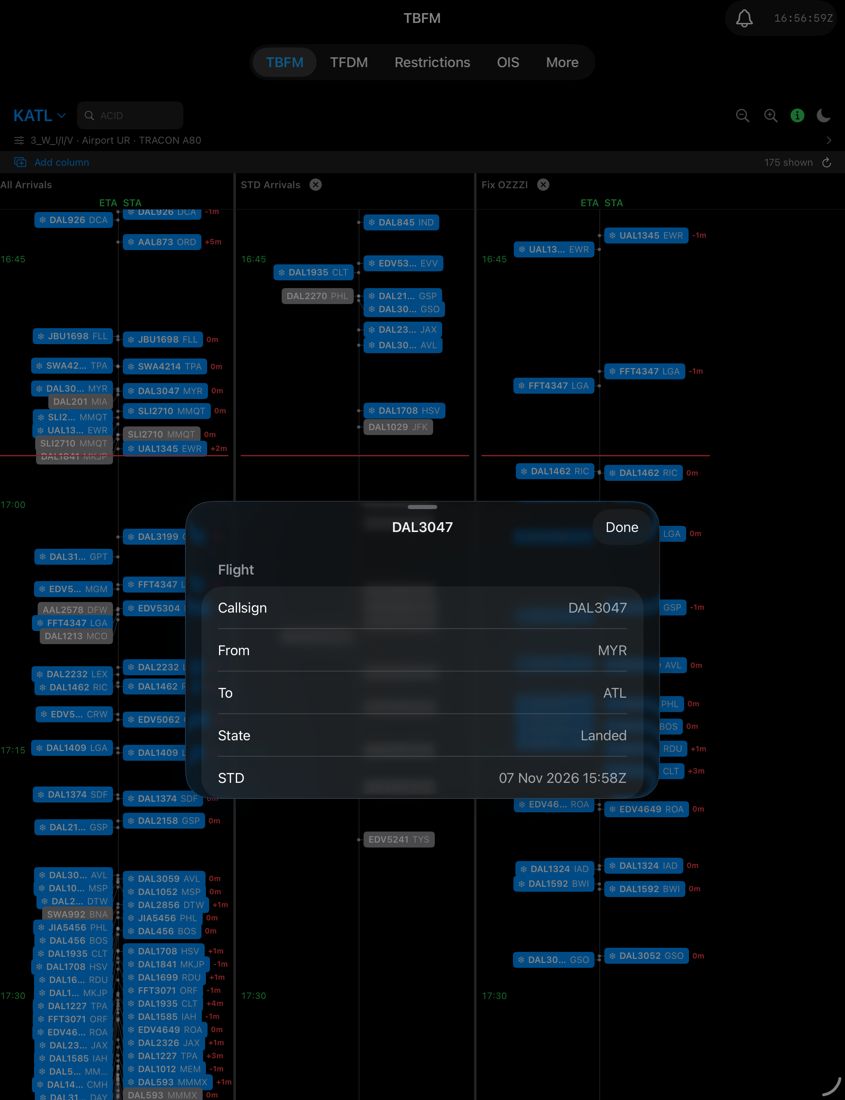
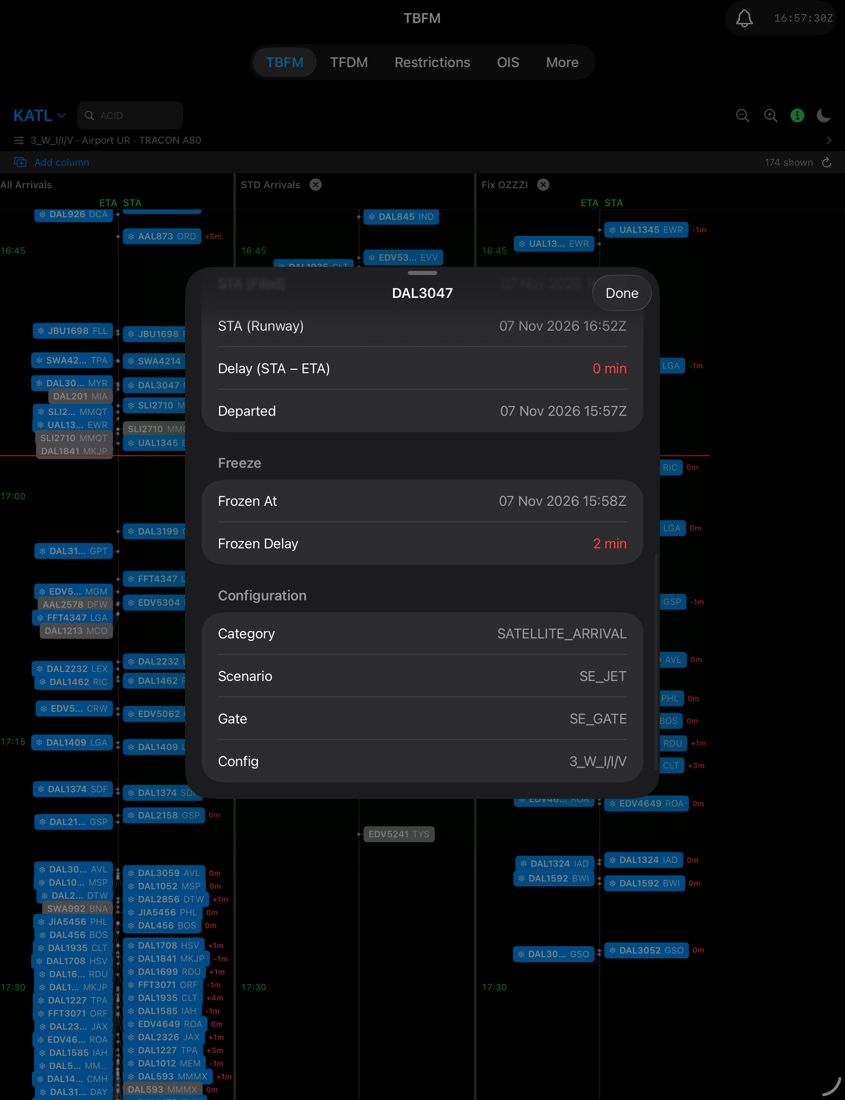
Tap any tag for: callsign, origin and destination, state (for example Tracked), STD, the meter fix and runway, and the timing breakdown: ETA at meter fix and runway, STA (filed and runway), delay, departure time, and freeze time and frozen delay where applicable. A Configuration block at the bottom shows the flight's category (for example SATELLITE_ARRIVAL), scenario, gate and runway configuration.
On iPad the sheet opens half-height; drag it up and scroll to see everything.
Configuration sheet
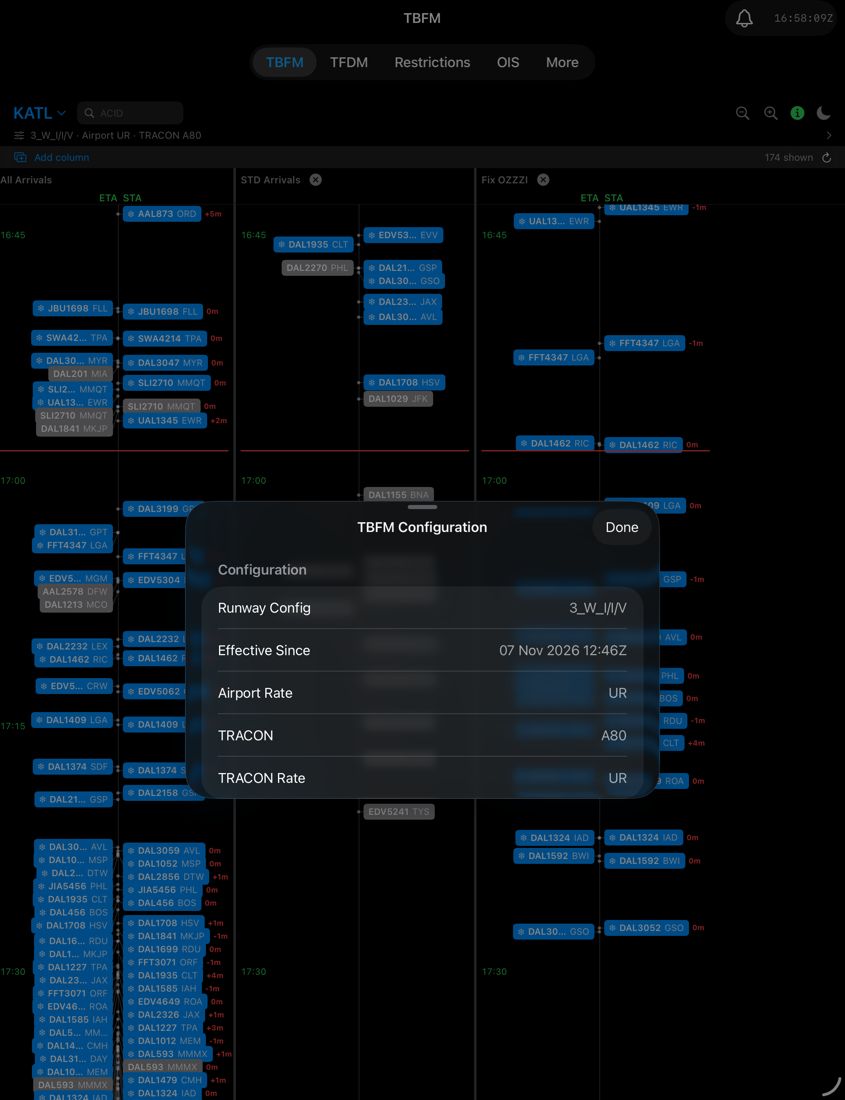
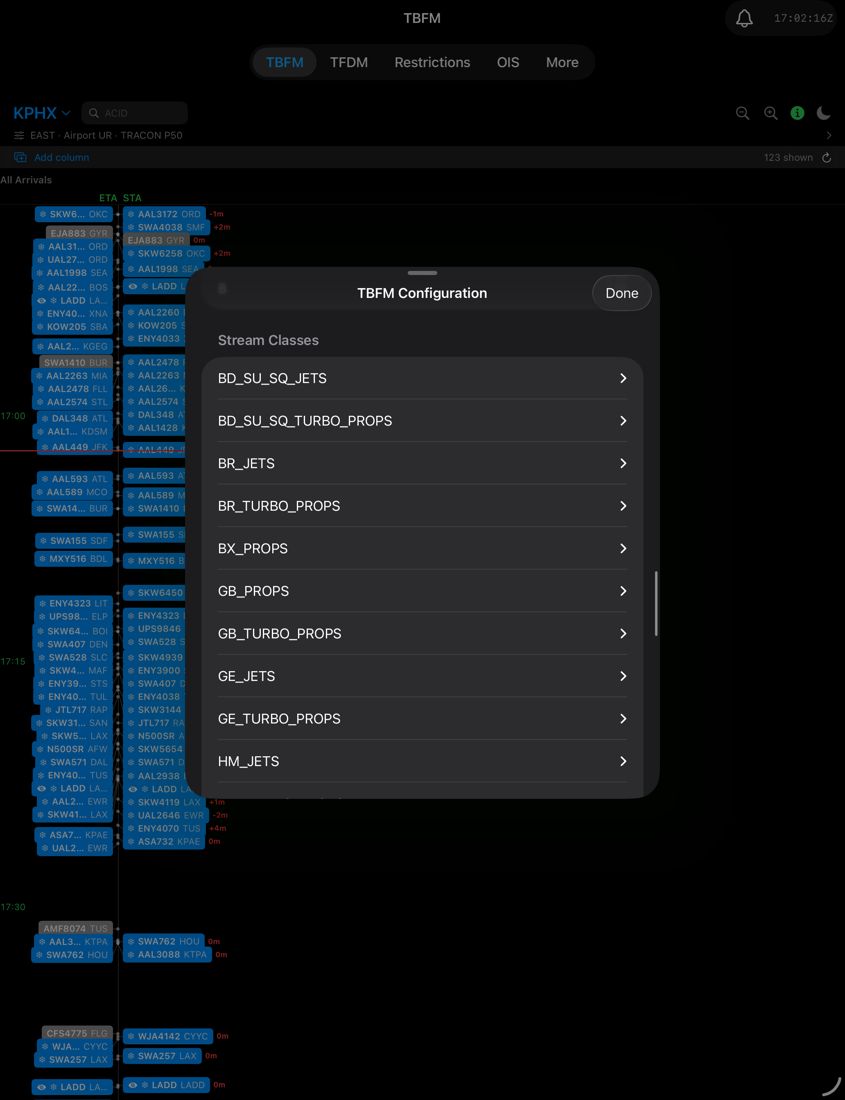
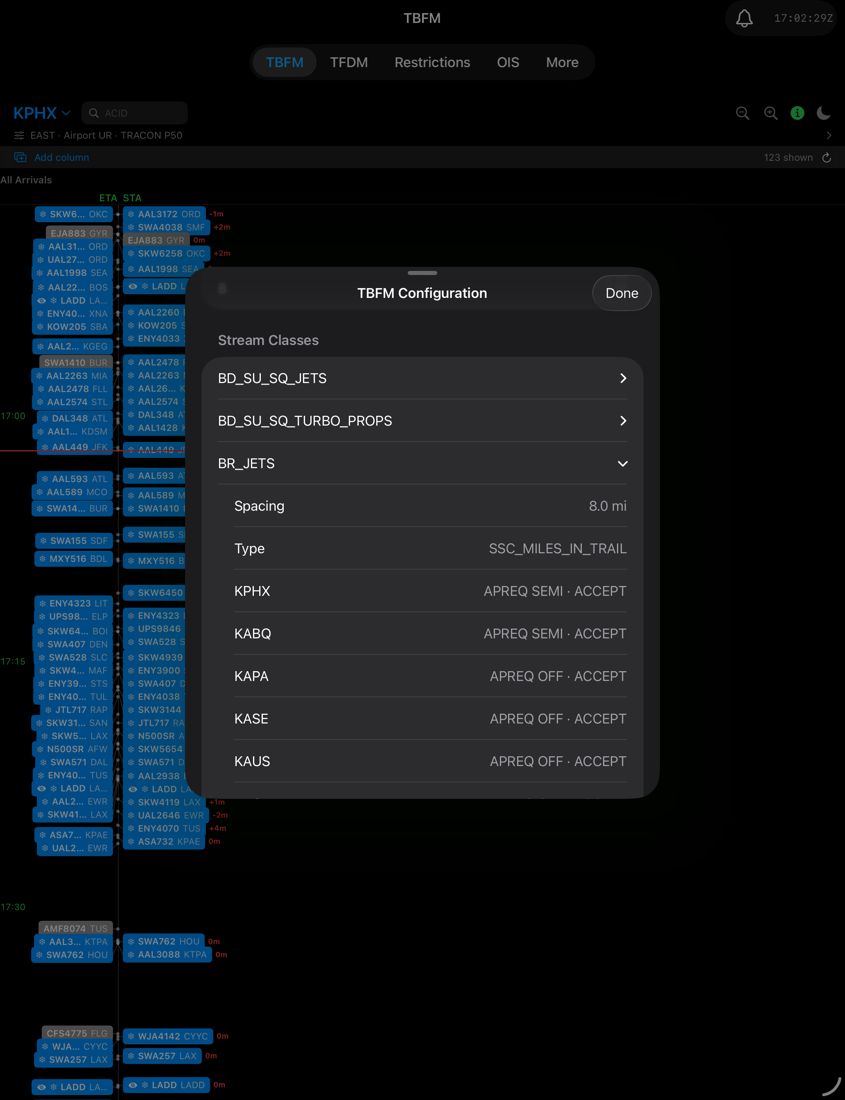
Tap the configuration line for: the runway configuration and when it took effect, airport rate, TRACON and TRACON rate, plus gate, meter-fix and runway rates. "UR" means unrestricted.
Where the TRACON publishes them (currently Phoenix, P50), a Stream Classes section at the bottom lists named traffic streams. Tap one to expand its spacing (for example 6.0 mi), its type (for example SSC_MILES_IN_TRAIL) and, per destination airport, its APREQ status (ON / OFF / SEMI / AUTO) and scheduling mode.
Tasks
Find a specific flight
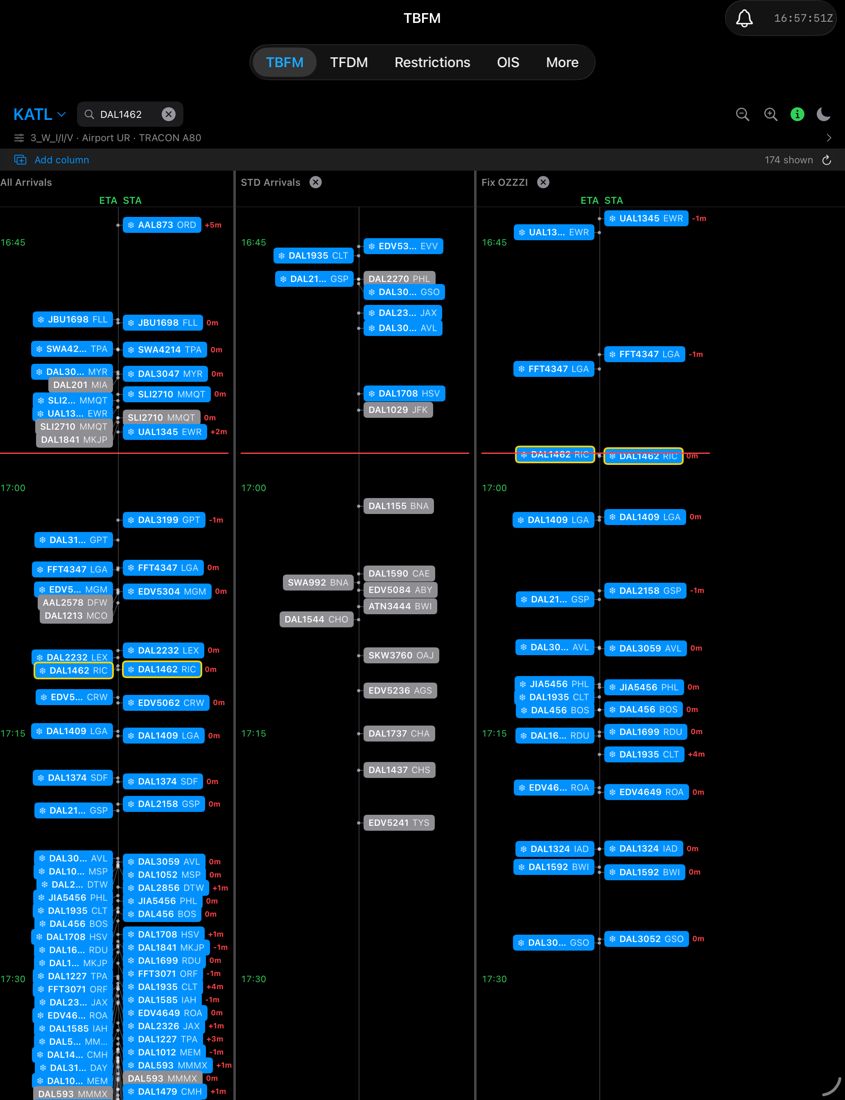
Type the callsign (for example SWA3763) into the search field. The match is outlined in yellow and stays highlighted through refreshes; the status row tells you if the flight isn't found or is outside the current window. Clear the field (the ✕ in it) to remove the highlight.
See more or less time at once
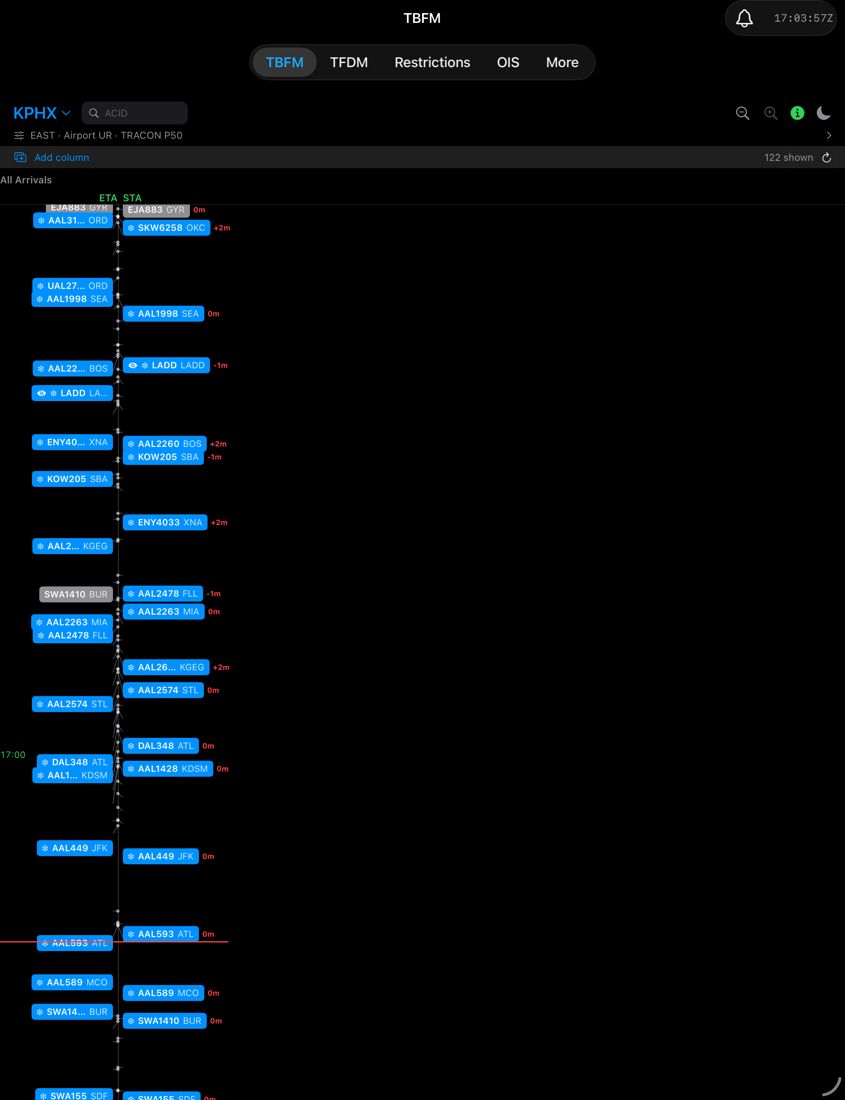
Use the magnifier +/− buttons, or pinch. Zoom in to separate crowded tags; zoom out for the big picture. The buttons are the reliable option when the ladder is too dense to find empty space to pinch.
Watch one meter fix
Tap Add column, then pick the fix. Keep All Arrivals alongside it to compare fix times against runway times.
Switch airport
Tap the airport code at the top left and pick from the list. The ladder clears and reloads for the new airport.
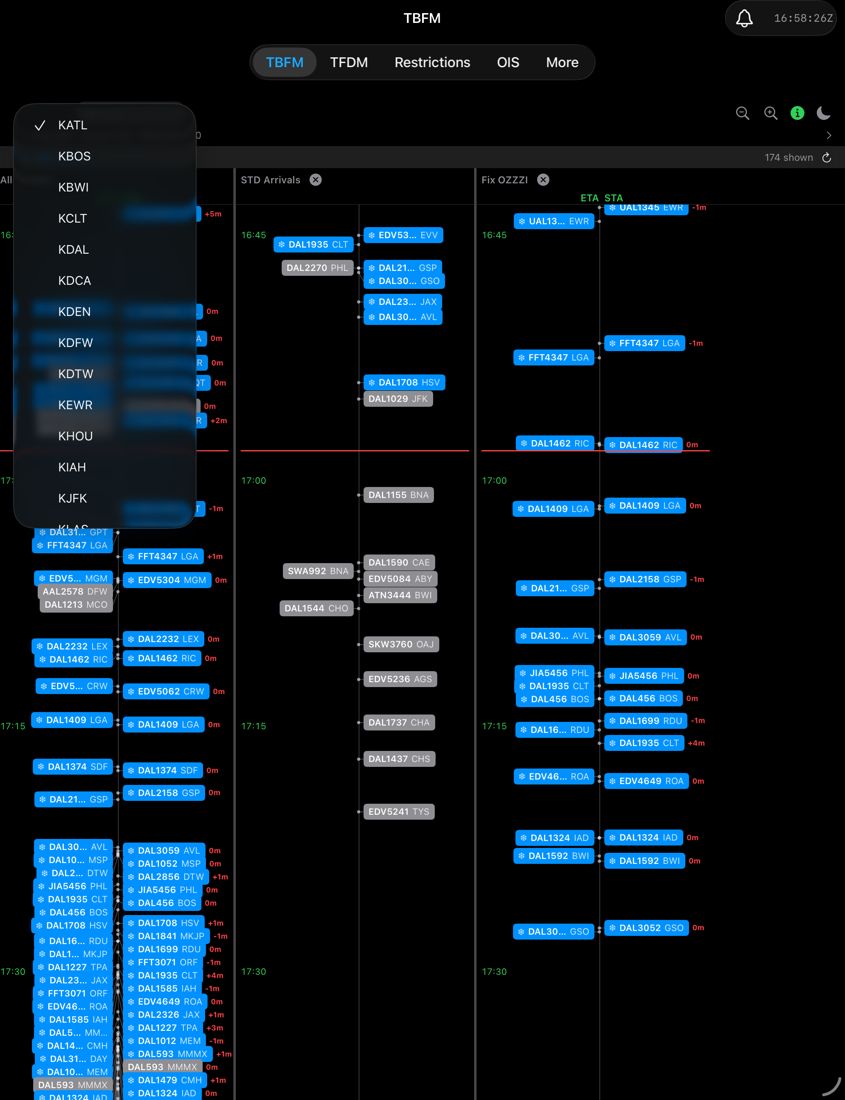
Switch between dark and light display
Tap the moon (or sun) in the header. Dark is the default.
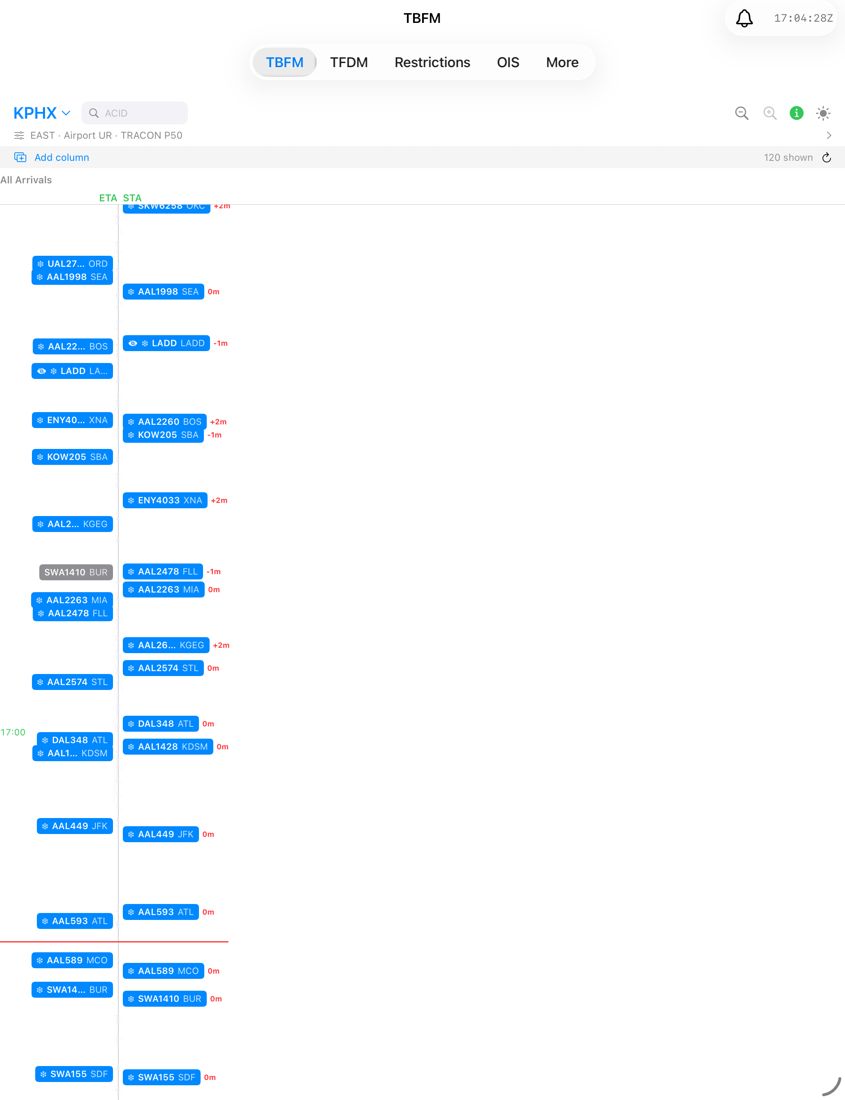
Check whether the data is current
Look at the ⓘ colour first, then the status row for a red error.
Best practices
- Keep All Arrivals plus the one or two meter fixes you care about, rather than every column. The screen is narrow, and swiping sideways is slower than a glance.
- Read the red delay figures down the STA side first; a run of growing numbers is the quickest sign of building metering delay.
- Use frozen versus not frozen to judge how firm a time is: a frozen STA is committed, an unfrozen one can still move.
- Check the configuration line when the picture changes suddenly. A runway configuration or rate change explains most step changes.
- If the ⓘ is not green, verify against your primary TMU displays.
- A larger screen (iPad) fits three or more columns side by side comfortably.
FAQ and troubleshooting
A flight I expect isn't there.
It may be outside the window, not yet tracked, or LADD-restricted (identity redacted). Try searching by callsign.
An airport is missing.
The list reflects current feed coverage and can change.
A flight has no STA or no delay badge.
It has an ETA but hasn't been scheduled yet.
"Configuration unavailable".
The TRACON hasn't sent configuration data for that airport yet.
TFDM Departure Ladder
The TFDM tab shows a live departure ladder for an airport, built from the FAA's Terminal Flight Data Manager feed. Every departure sits on a vertical time axis, coloured by where it is in its departure: at the stand, taxiing, in the queue, departed. Beside the ladder, Demand and Queue columns show how busy the airport is. Data refreshes automatically every 30 seconds.
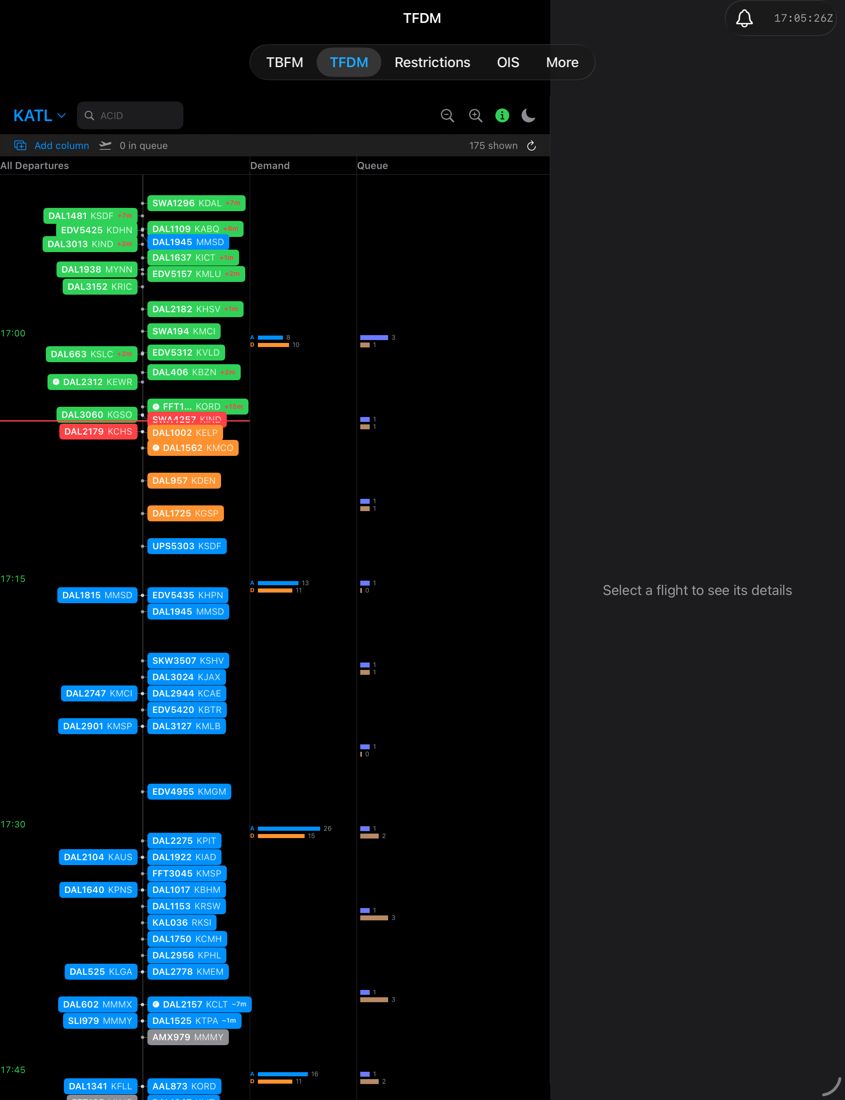
Reading the screen
| Element | Meaning |
|---|---|
| Airport selector (top left, e.g. KATL ▾) | Switch airports. The list is whatever is currently available from the feed. |
| Info icon (ⓘ) | Opens the Legend. Its colour shows feed health: green = healthy, yellow = degraded, red = stale. |
| Moon / sun | Dark or light display. Dark is the default. |
| Clock | Current time in UTC (Zulu). |
| Search field (ACID, beside the airport selector) | Find a flight by callsign (for example SWA3763). |
| Magnifier +/− | Zoom the time axis. |
| Status row (under the header) | Add column on the left adds a runway column (see Columns). "N in queue": the departure-queue count, where the airport reports it. "N shown": flights on the ladder. ↻ refreshes. Search feedback and a gridlock warning (when the airport reports gridlock) also appear here. |
| Time axis (green, every 15 min) | Zulu time. The red line is "now". |
| Flight tags | Callsign and destination. Tags sit left or right of the central rail, joined to their time on the rail by a thin leader line. Tap one for details. |
Flight tag colours
| Colour | State |
|---|---|
| Grey | Scheduled / Filed |
| Blue | At Stand |
| Teal | Taxi Out |
| Yellow | Ground Hold |
| Orange | In Departure Queue |
| Red | Line Up & Wait |
| Purple | On Final |
| Green | Departed |
A flight stays green for a short while after departure before it drops off.
Extras on a tag
- Clock icon: exempt from SMP due to a CFR (Call For Release).
~Nm(small, for example~17m): predicted delay. Shown only when there is no current delay.- Red
+Nm: current delay in minutes.
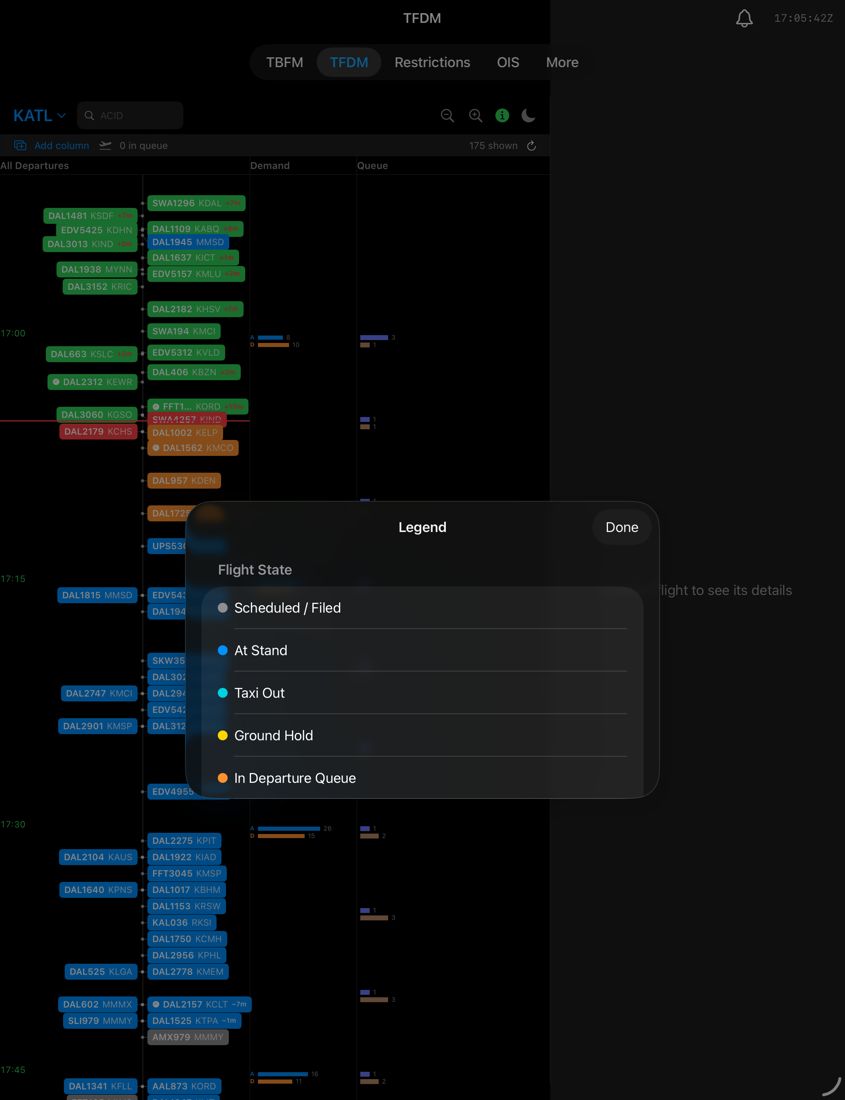
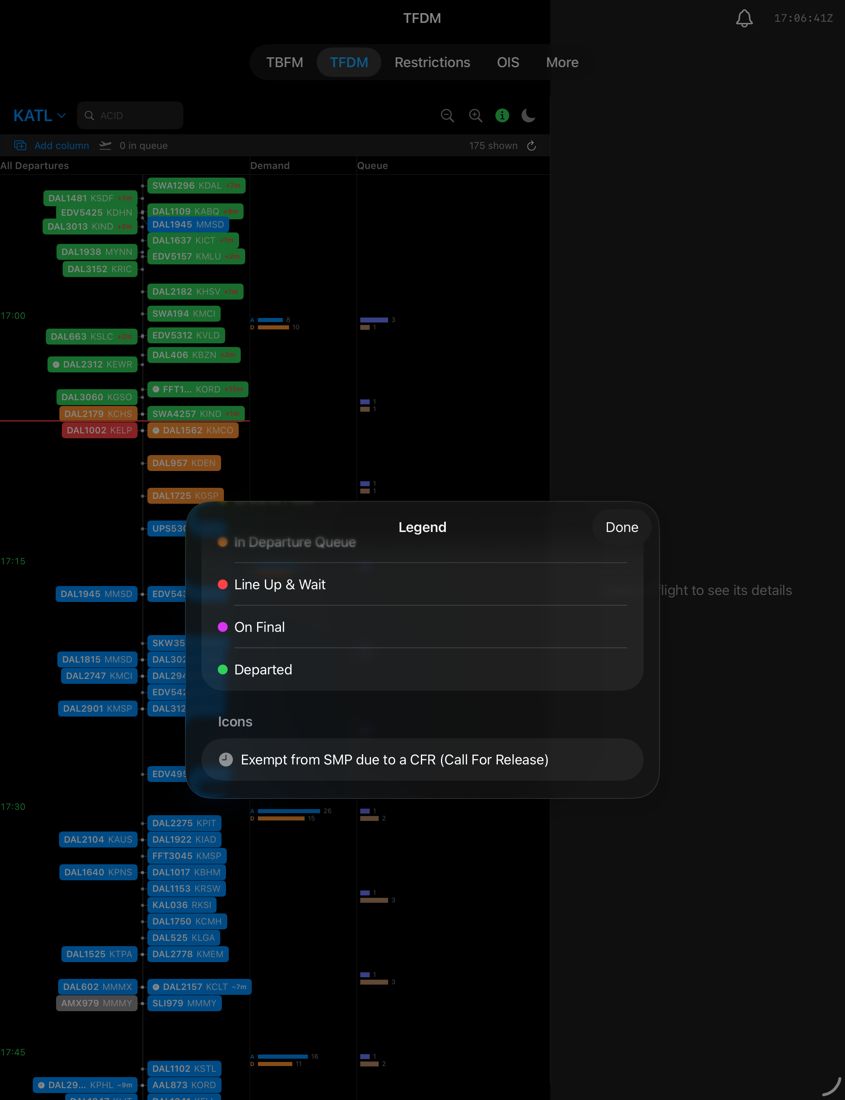
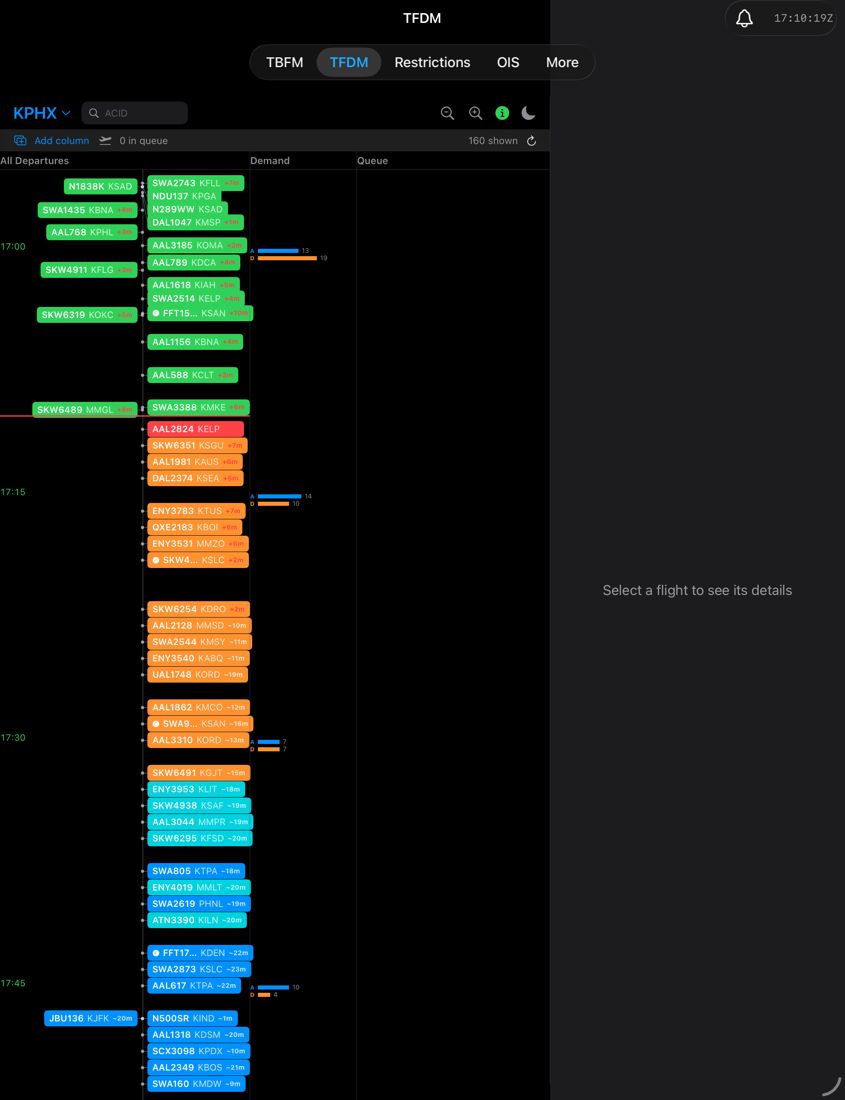
~Nm predicted delays and red +Nm current delays on the tags.Columns
- All Departures: every departure, on the rail.
- Demand: per time bucket, a blue A bar (arrivals) and an orange D bar (departures), with counts.
- Queue: per time bucket, bars for flights in the departure queue.
- Runway columns: tap Add column and pick a runway (for example 26L). The new column shows only that runway's departures, with its own queue bars (for example "Queue 26L"). Remove it with its ✕. Swipe sideways to move between columns.
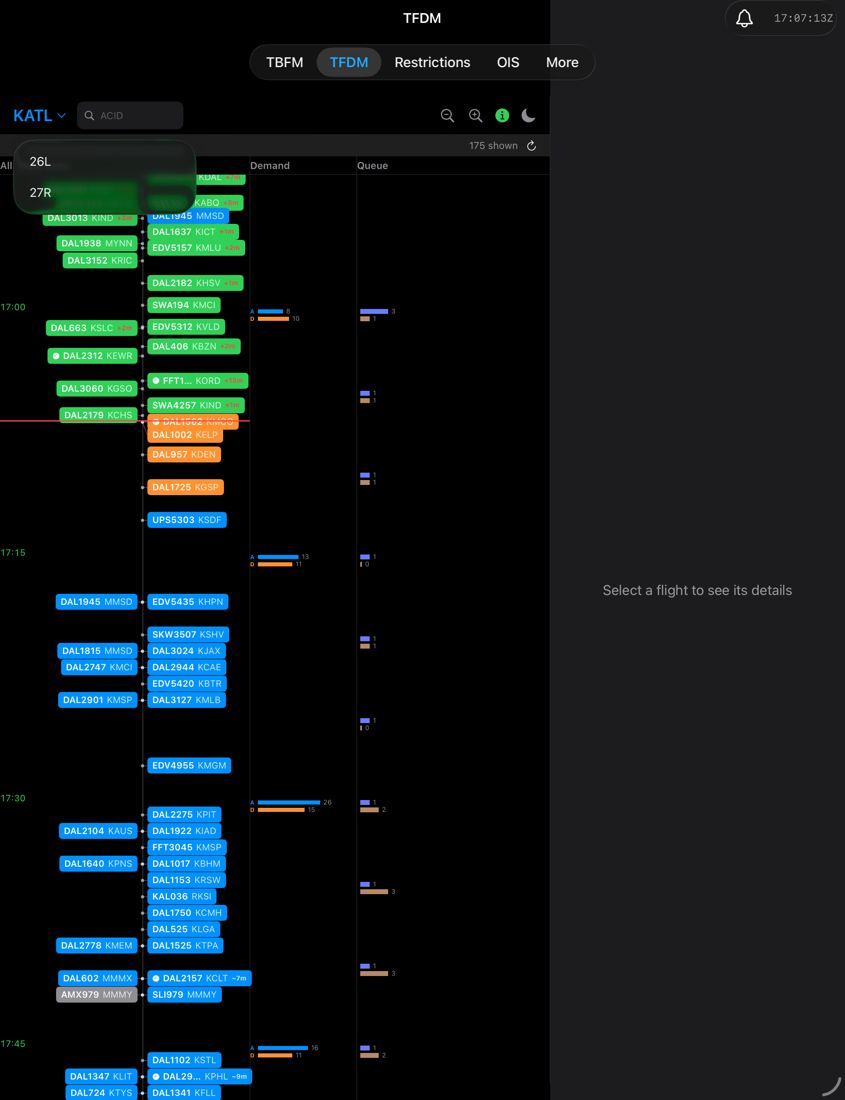
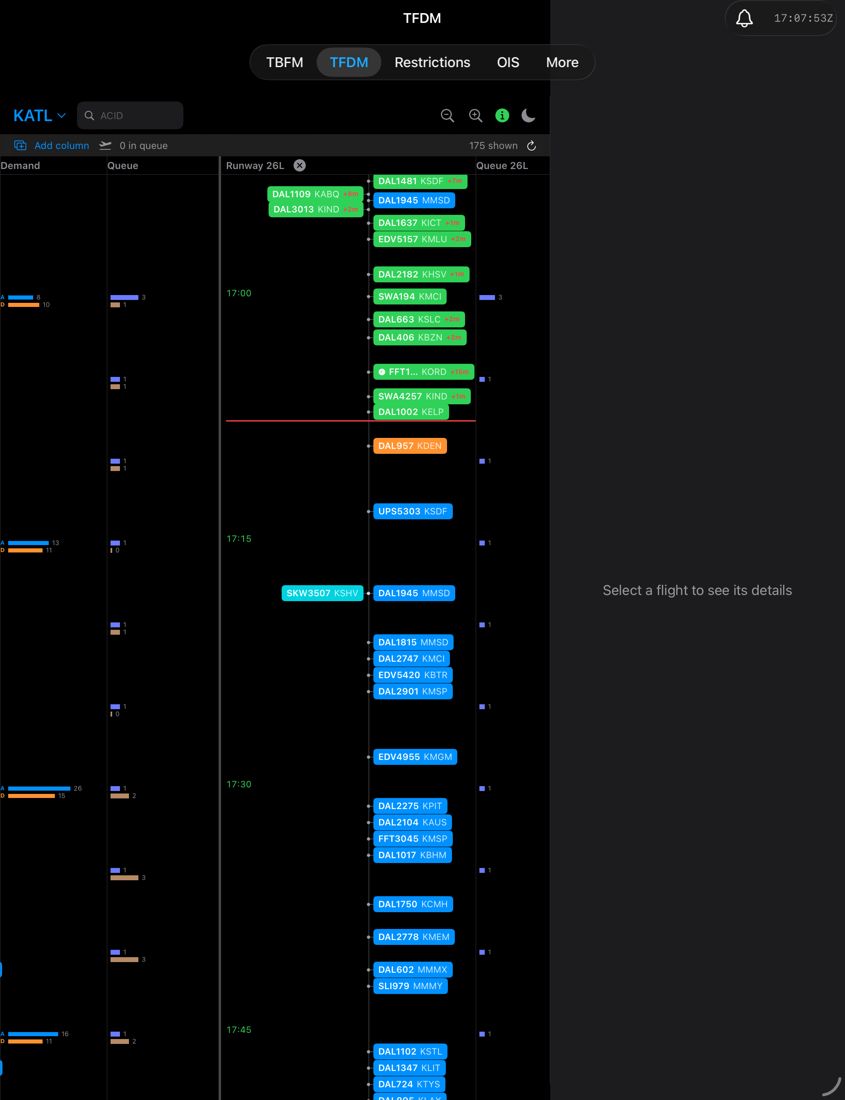
Flight details
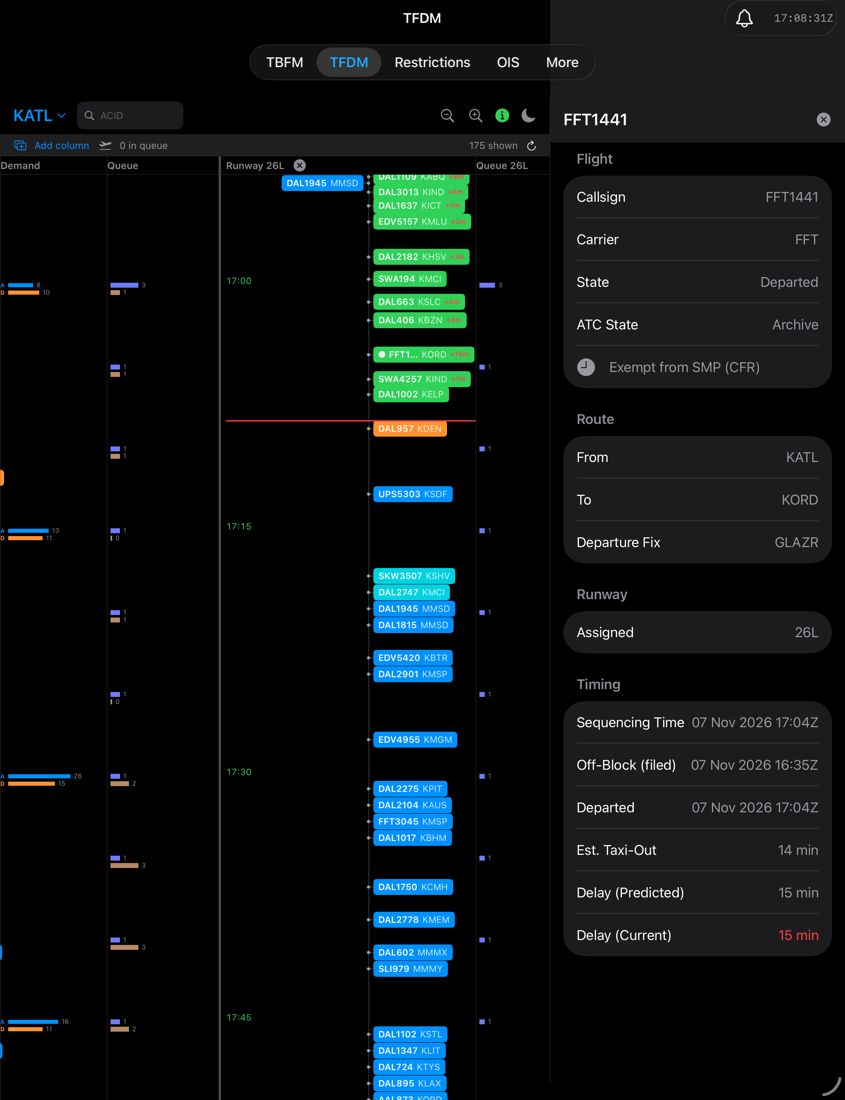
Tap a tag. On iPad the details open in a side panel on the right; on iPhone they open as a sheet. Sections:
- Flight: callsign, carrier, state, ATC state, and flags (LADD, CFR exemption).
- Route: from, to, departure fix.
- Runway: assigned (and predicted, where available).
- Timing: sequencing time, off-block (filed), departed, estimated taxi-out, delay (predicted) and delay (current, shown in red when non-zero).
Tasks
Find a flight
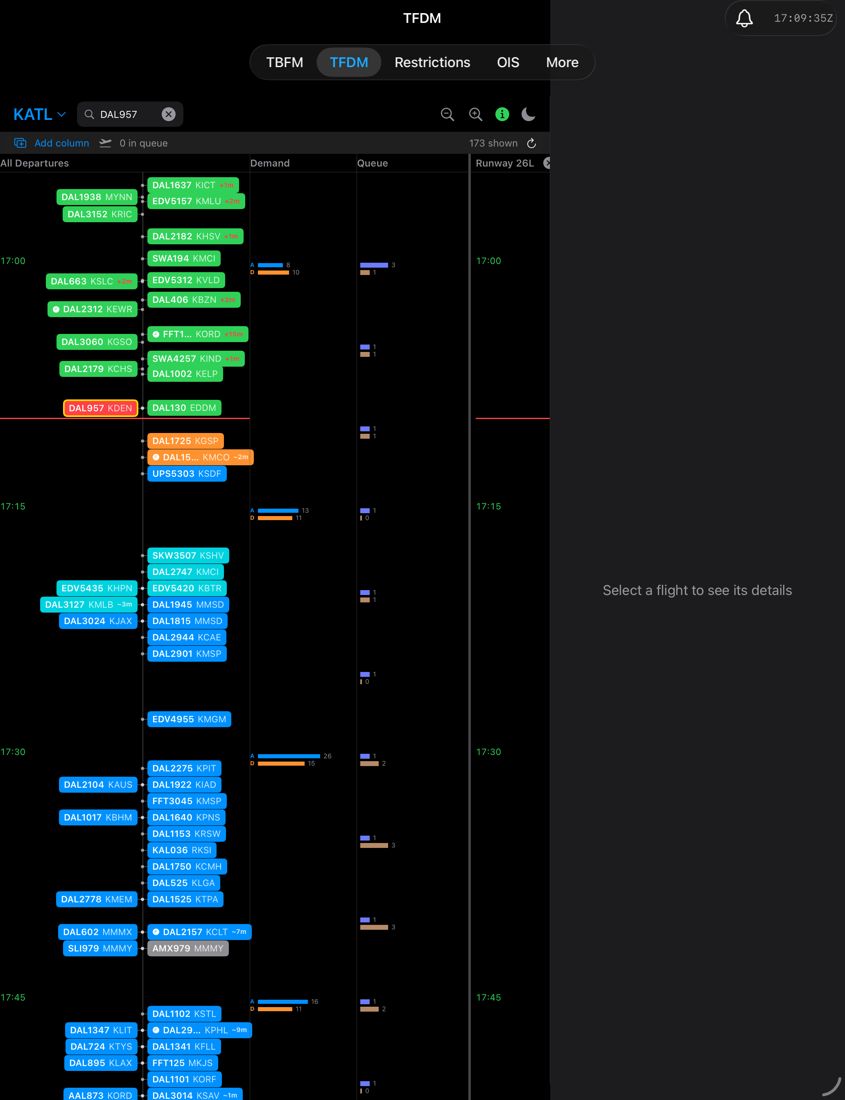
Type the callsign in the search field. The match is outlined in yellow. If the flight exists but isn't on the visible ladder, the status row says so.
Zoom
Use the magnifier +/− buttons. Zoom in to separate crowded tags, out for the big picture.
Watch one runway
Tap Add column, then pick the runway. Keep All Departures beside it to compare.
Switch airport
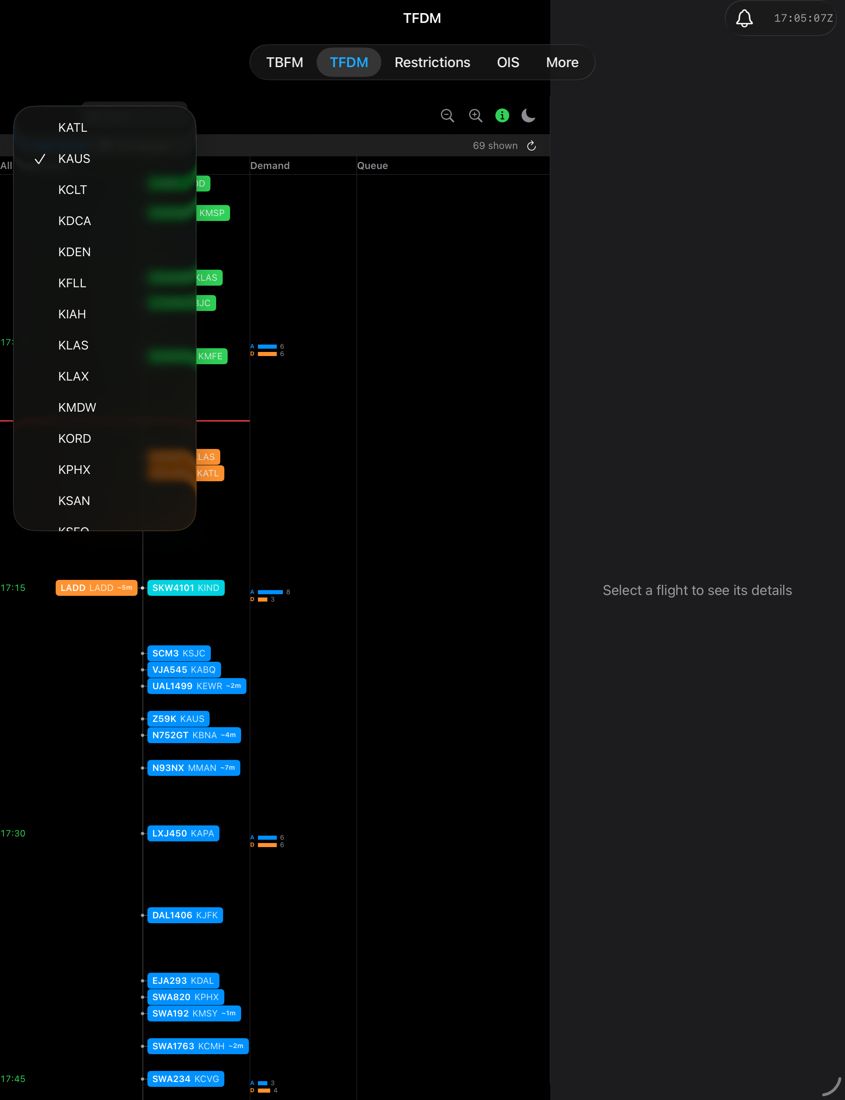
Tap the airport code and pick from the list. The ladder clears and reloads for the new airport.
Check the data is current
Look at the ⓘ colour first.
Best practices
- Scan the colours first: a growing run of orange (in queue) or yellow (ground hold) tags is the quickest sign of departure build-up.
- Use
~Nmpredictions to see delay coming before it is "current". - Add the runway columns in use and read the per-runway queue bars to see which runway is backing up.
- Compare the Demand bars with the queue to judge whether the airport is arrival- or departure-heavy.
- If the ⓘ isn't green, verify against your primary TMU displays.
FAQ and troubleshooting
"0 in queue", or empty Demand and Queue columns.
Queue and demand data only exist for airports where the FAA's airport-status feed is deployed. Elsewhere the ladder still works but those columns can be empty.
A flight I expect isn't there.
It may be outside the time window, not yet filed, or LADD-restricted.
Program Notifications
ATC Status can send you an alert when a Ground Delay Program (GDP), Ground Stop (GS) or Airspace Flow Program (AFP) is announced or changes. You choose which kinds of program, which events, and which airports. Alerts are off by default, and nothing is saved until you turn them on and tap Save.
Setting up alerts
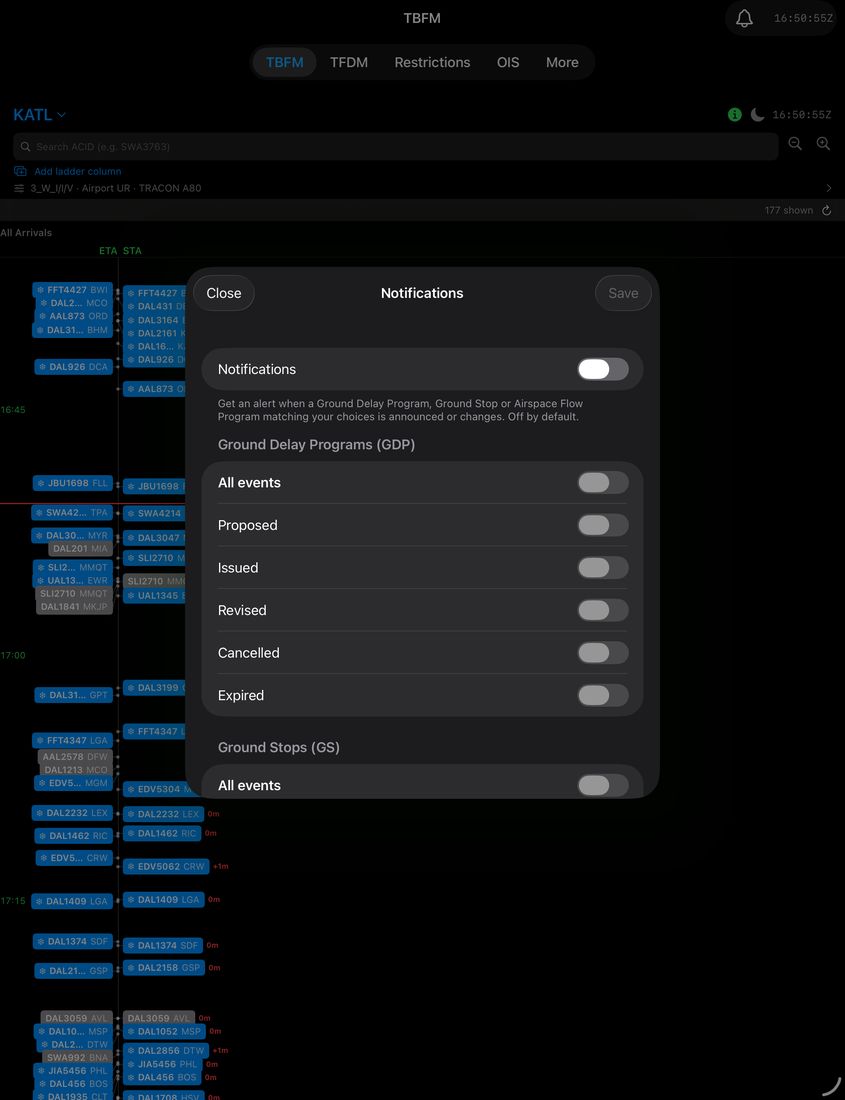
- Open Notifications. Tap the bell at the top right of the app, next to the Zulu clock.
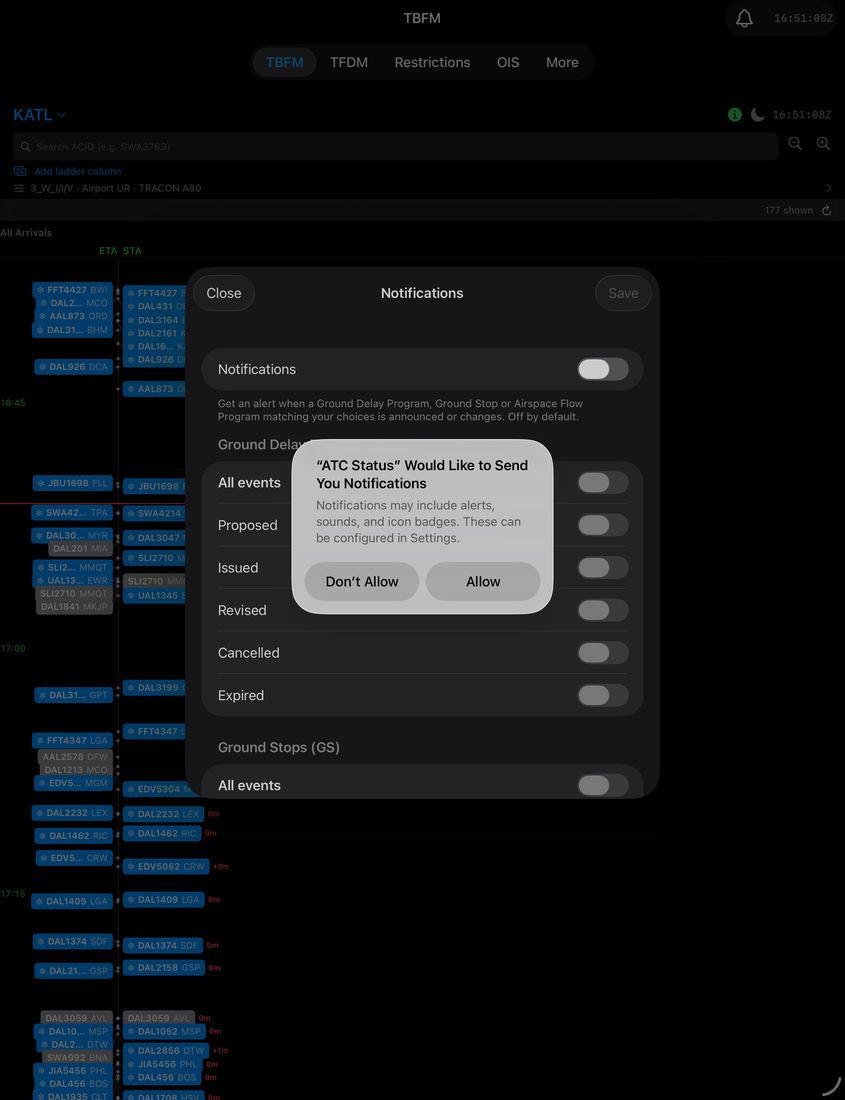
- Turn on the Notifications switch. The first time, iOS asks whether ATC Status may send you notifications. Tap Allow. If you tap Don't Allow, the app explains how to enable notifications in the iOS Settings app; once you have, turn the switch on again.
- Choose the events you want for each kind of program (see What you can be alerted about).
- Choose your airports (see Choosing airports).
- Tap Save. Save stays dimmed until you have changed something and your choices are complete.
If you leave with unsaved changes, the app asks whether to discard them.
What you can be alerted about
| Program | Events you can pick |
|---|---|
| Ground Delay Programs (GDP) | Proposed, Issued, Revised, Cancelled, Expired. Each is its own switch, so you can opt in to proposed programs or leave them out. All events turns the whole group on or off. |
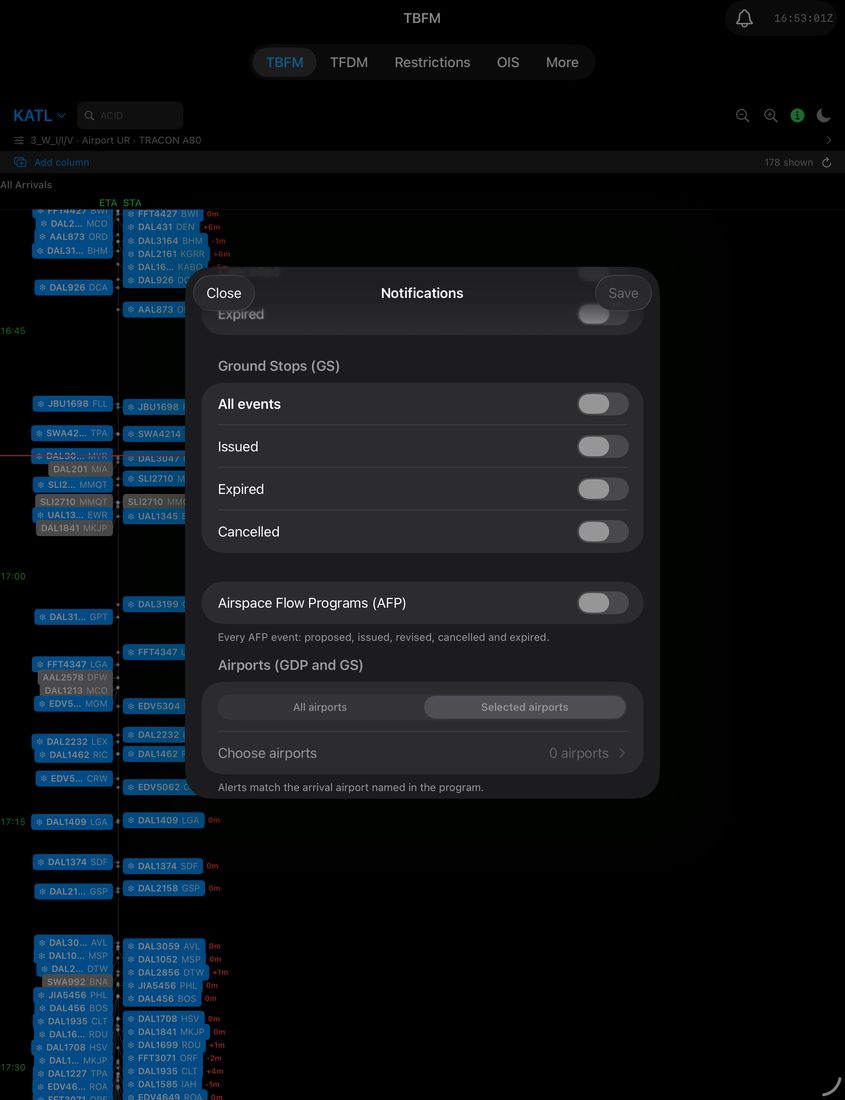
| Ground Stops (GS) | Issued, Expired, Cancelled. All events turns the group on or off. |
| Airspace Flow Programs (AFP) | One switch for every AFP event: proposed, issued, revised, cancelled and expired. |
Every revision to a program sends an alert, however small. A revision replaces the earlier alert for the same program rather than stacking up.
Choosing airports
The Airports setting applies to GDPs and Ground Stops. It does not apply to AFPs, which cover airspace rather than a single airport.
- All airports: an alert for every matching program nationwide. On a bad-weather day this can mean many alerts.
- Selected airports: tap Choose airports and tick the ones you want, up to 100. Alerts match the arrival airport named in the program.
In the airport list:
- Search by airport code or name.
- Tap the ⋯ menu for Add CORE30 (adds the 30 core airports to your selection without removing the ones you already chose), Selected only (show just your picks) and Clear All.
- The header shows how many airports you have chosen out of the maximum.
If you pick Selected airports but choose none, the app tells you to choose at least one and won't save.
When an alert arrives
An alert names the program and the airport, with a short summary of the program, for example the arrival window, rate and average delay.
- GDP and Ground Stop alerts: tap the alert to open that program's details in the app.
- AFP alerts: tap the alert to open the app.
Changing, pausing or turning off
- Change your choices: tap the bell, adjust, and tap Save.
- Pause alerts but keep your choices: turn the Notifications switch off and tap Save.
- Turn off and delete your settings: tap Turn Off and Forget My Choices at the bottom of the screen. This removes your choices from the server. The button appears once you have saved settings.
- Block alerts at the device level: use the iOS Settings app, under Notifications, then ATC Status.
Best practices
- Use Selected airports and keep the list to the airports you actually work or watch. Use Add CORE30 as a starting point, then remove the ones you don't need.
- Turn on Proposed for GDPs only if you want early notice; it adds alerts for programs that may never be issued.
- Leave Revised on if you track program changes, but expect an alert for every revision.
- Use All airports sparingly, for example for a short period during widespread weather.
FAQ and troubleshooting
I turned alerts on but nothing arrives.
Check that you tapped Save, that notifications for ATC Status are allowed in iOS Settings, and that your event and airport choices actually match a program. On quiet days there may be none.
"Notifications are turned off for ATC Status".
iOS permission was declined. Open the iOS Settings app, allow notifications for ATC Status, then turn the switch on again in the app.
"Notifications unavailable" or "Couldn't load".
The screen couldn't reach the notification service. Check your connection and tap Try Again. "Unavailable" means the service is not switched on at that time.
Does ATC Status know who I am?
No. There are no accounts. The app stores a random device identifier, your push token and your alert choices, and uses them only to send the alerts you chose. See the privacy policy for details.
ATC Status is an informational tool, not an operational one. Always verify against your primary traffic management displays. ATC Status home · Privacy